Only for Windows-on-ARM devices (e.g. Surface Pro X, Snapdragon-based laptops). Not sure? Check Settings → System → About → System type on your PC — if it says "x64-based processor", use the option above instead.
Astra is built on the same secure Firefox and Zen foundations you trust. Because we are
still growing as a student-led project, we have not yet purchased the expensive Windows
code-signing certificate. Windows SmartScreen may show a one-time notice — this is normal
and does not mean Astra is unsafe.
01
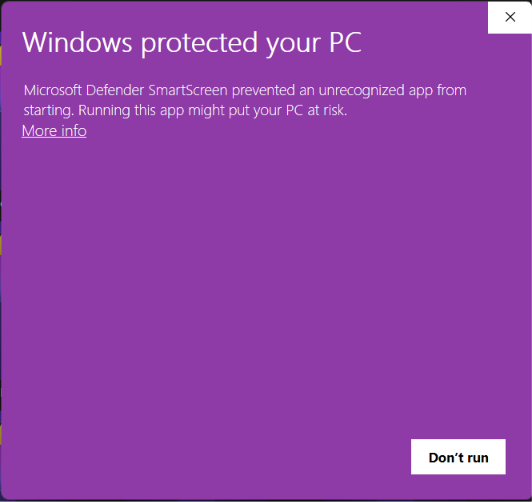
Click “More info”
When the purple Windows screen appears, select the underlined
More info link.
Step 1 · SmartScreen first screen
02
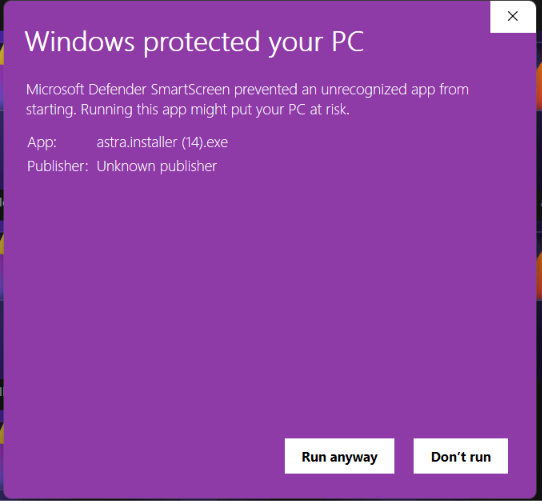
Click “Run anyway”
On the next screen, choose Run anyway to start the Astra installer.
Step 2 · Run anyway to install
03
Your installer is installing
After you click Run anyway, the Astra installer opens and setup begins automatically.
Your download has started. Follow the two steps above when Windows asks.
Your installer is installing
Follow the steps when Windows SmartScreen appears.